Dust removal for lab scans, black and white included.
The dust removal built into Noritsu and Frontier scanners is infrared, so it has to be off for traditional black and white film, and those scans are spotted by hand. Spot Tone looks for dust in the picture itself and repairs what it finds with the film's own grain, on color and black and white film. Its Hot Folder watches the folder the scanner saves into and repairs scans as they land, on a Mac or a Windows PC beside the scanner.
Why the scanner's dust removal stops at black and white.
Lab scanners clean dust with an infrared pass. Color dyes let infrared through and dust does not, so the scanner gets a map of every defect and fills it in. On color negative film it works well and costs nothing in time.
Traditional black and white film is metallic silver, which blocks infrared the same way dust does. The whole frame looks like dust to the scanner, so the feature has to be off. Kodachrome has the same problem. Chromogenic black and white, such as Ilford XP2, is made of dye and cleans the usual way. The black and white page explains it in full, with frames from a lab's Noritsu that show what infrared cleaning can leave behind on color film.
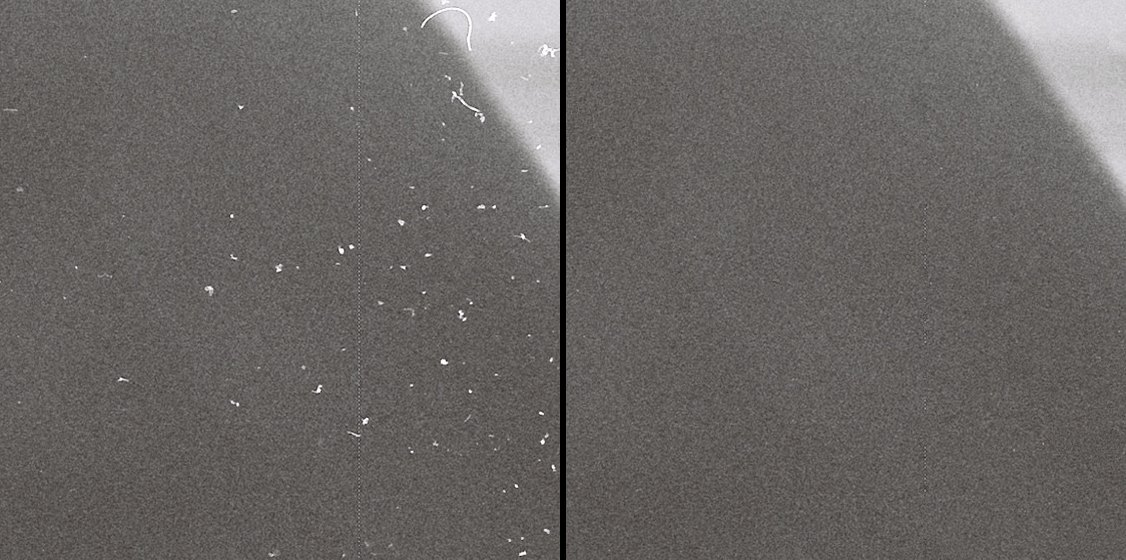
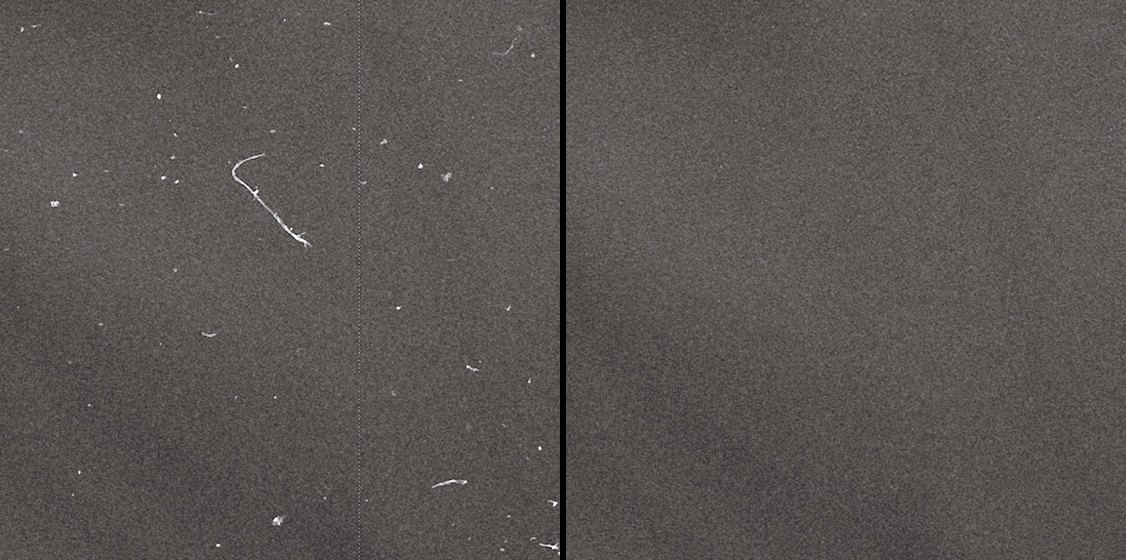
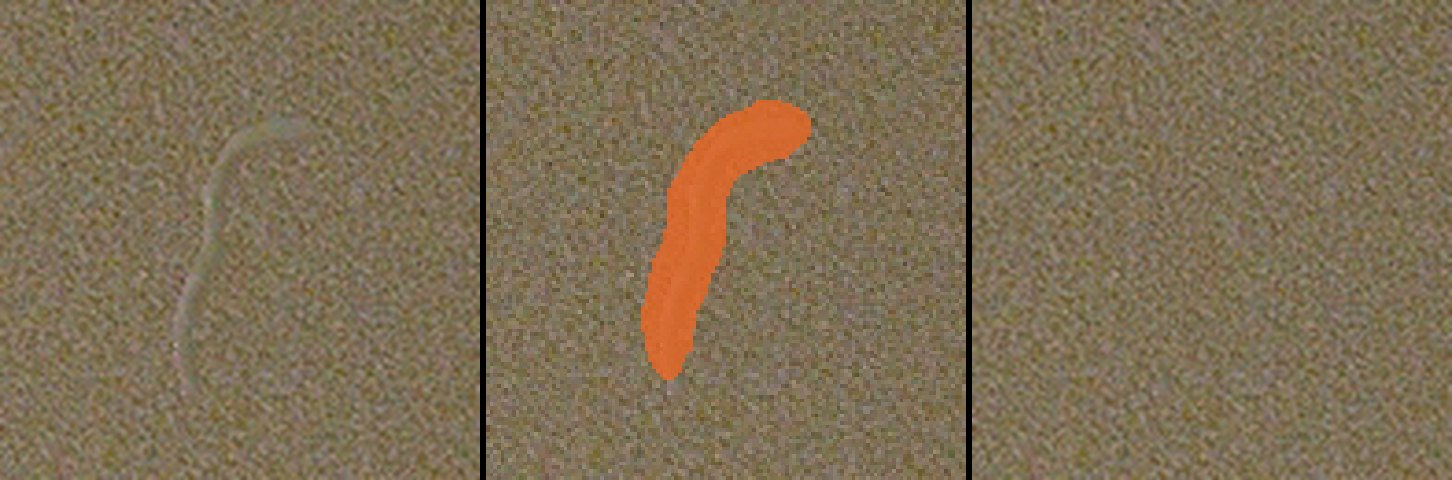
How the Hot Folder works beside a scanner.
Spot Tone runs on a second computer, a Mac or a Windows PC, that can see the folder the scanner exports to. A minilab scanner's own PC is usually dedicated to scanning and already hands its files to another computer or a server over the network; Spot Tone runs there. A camera-scanning station is the exception, where the same computer can do both.
- Open the Hot Folder window (Window ▸ Hot Folder). Set In to the folder the scanner saves into and Out to where repaired frames should go. Folders… chooses which folders inside In are watched; two scanners writing to two folders means checking both.
- Choose what happens to each original after its repair: it moves to In/_completed (the default, which deletes nothing), it is removed from In once the repaired copy has been written and read back, or it is replaced in place.
- Check the Hot Folder's own settings, kept apart from the rest of the app because it runs unattended: Sensitivity (40% to start), Second look at large marks, Auto-rotate using faces, Apply Auto Levels, Desaturate fully, Format (Same as original keeps each file's format), and Add to name (empty to start, which keeps the scan's name, or a suffix such as _cleaned).
- Start Watching. Each new scan in In, subfolders included, is detected, repaired, and written to Out in the same folder structure, except the ones set aside below. The Hot Folder waits until a scan's size holds steady and, for JPEG, PNG, and TIFF, checks that the file is whole, so a slow copy is not picked up half-written.
While it watches, the computer stays awake (the screen can sleep), and Resume watching when Spot Tone opens starts it again after a quit, a crash, or an update. Someone can keep working by hand in the same app: the Hot Folder slows to one scan at a time and leaves any open scan alone.
What it sets aside for a person.
When the Hot Folder is unsure, it leaves the frame for someone to look at.
- A frame where more than 1.5% of the picture reads as dust is not repaired. It goes to In/_needs_review.
- With Second look on, a large mark that looks like part of the picture, such as a lens rim, a letter, or a highlight, is left alone and ringed in yellow. The frame is delivered with that repair listed as skipped, and a right-click on the ring repairs it.
- A file it cannot read or write is listed as failed, with the reason, and tried again on the next Start.
- It never replaces a file in Out that it did not write. A clash gets -1 or -2 on the name.
- Every frame gets a line in In/_qc/log.csv saying how much was marked and what was done. Save QC overlays adds a small picture of each frame with its marks.
File format and bit depth.
Labs usually need the delivered file to match what the upload step expects. Format set to Same as original keeps each file's format, and a 16-bit scan is repaired and written at 16 bits. With Auto Levels and Desaturate off, pixels that were not repaired come out identical to the original. Overwrite Mode (Settings ▸ Export) replaces originals in place, keeping format, bit depth, color profile, and metadata; it asks every time it is turned on, and a replaced file cannot be undone. Raw DNGs from a camera-scanning station are repaired as raw and come out as DNGs.
For whole orders worked at the desk instead of a watched folder, Detect All, Repair All, and Export All run a selection, and the Export sheet can build file names from an order number, client, client ID, and twin check.
Scans stay in the building.
Detection and repair run on the computer. Scans are not uploaded, and there is no account. Sharing corrections to train the detector is off unless you turn it on; the privacy notice says what it sends. The app checks for app and detector updates and sends crash reports, which can be turned off in Settings.
What it costs.
The Lab license is for film labs and anyone who scans other people's rolls. It is $50 per seat per month, or $500 per seat per year. One seat per computer, and the lab chooses which computers hold them. It adds Hot Folder, Repair All, Export All, Overwrite Mode, Crop and Align, Auto-Rotate, and the Tone panel to everything in Indie. Spot Tone starts with a 14-day free trial of the whole app, with no account and no card. A Mac license works on Windows.
Spot Tone for Windows is a public beta. Through December 31, 2026, every feature, Lab included, is open on Windows with clean, full-size exports and no license needed. After December 31, a PC without a license is offered the same 14-day trial as the Mac, and a license bought for the Mac works on Windows.
What Spot Tone does here.
Spot Tone repairs dust, hairs, and scratches on color and black and white scans from a Noritsu, a Frontier, a Flextight, or a flatbed, and its Hot Folder does it as the scanner saves. It was trained on real film scans.
Sources.
- Wikipedia, "Digital ICE": https://en.wikipedia.org/wiki/Digital_ICE
- Spot Tone, "Why infrared dust removal fails on black and white film": https://spottoneapp.com/black-and-white